What to expect in OJS 3.5
Info
Last updated: July 28, 2026
This document is designed to help you navigate changes to your journal's OJS site that come with the upgrade to OJS 3.5. Most YDJ journals are upgrading from OJS 3.3 so this document also covers some changes that came with OJS 3.4.
These include new features and significant changes to existing features, as well as minor tweaks you should be aware of.
Because of serious problems with the implementation, YDJ has chosen not to implement one of the features of 3.5 (Manage and Track Editorial Board History) and will instead recreate the Editorial Teams page from 3.3/3.4. The problems with this feature and the details of the work-around are detailed later in this document.
You can view the official documentation from PKP at:
- What's New in OJS 3.5?
- Learning OJS 3.5 for Journal Managers
- Learning OJS 3.5: The Editorial Workflow
PKP has also updated the free, self-guided courses in PKP School for OJS 3.5. These courses should be the first stop for training new editors.
- Setting up a Journal in OJS 3.5
- Note: Module 4, Unit 2 (Editorial Masthead) will not be applicable to the YDJ implementation
- Editorial Workflow in OJS 3.5
This document supplements PKP's documentation with some observations from upgrade testing at YDJ.
New and changed features
Redesigned editorial dashboard
This looks like a big change but only changes navigation and not the functionality.
Editorial Dashboard
The structure of the left-hand sidebar of the OJS dashboard has changed. As Journal Managers and Journals Editors, you'll see that Submissions has been replaced with Editor Dashboard. If you also have reviews or submissions under your account, you may also see entries for My Assignments as Reviewer and My Submissions as Author.
You'll see something like this when you first open OJS 3.5:
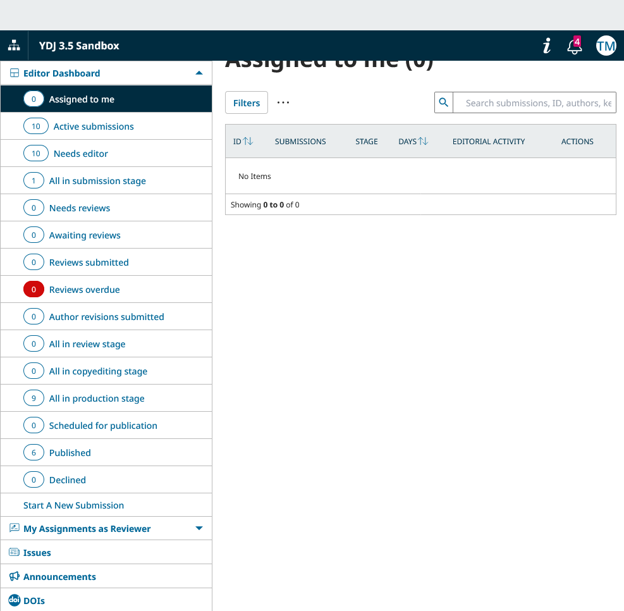
Under Editor Dashboard, you will see several filters for different stages in the editorial workflow and submissions' statuses within them. These replace the 4 queues you would have seen in earlier versions of OJS and should make it easier to get an overview of where things stand with all your journals' submissions.
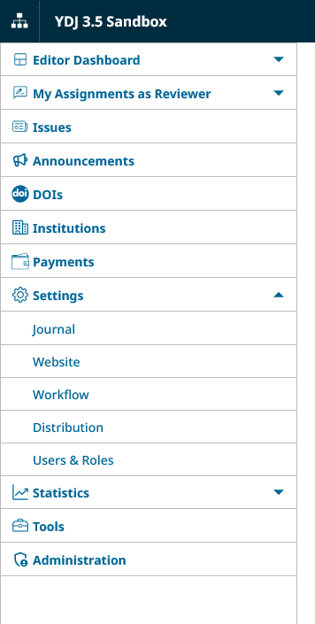
Settings
Because Editor Dashboard starts expanded, you may not immediately notice the Settings section in the left side bar. Expand that section to find the familiar _Journal, Website, Workflow, Distribution, and Users & Roles pages.
Submission information pages
The layout of the submission information page (what you see when you click View on a submission) has also changed. Instead of two levels of tabs across the top of the main work area, the Workflow and Publication pages now appear as sections in the left sidebar, and all the familiar tabs from those pages appear underneath them.

Redesigned submission wizard (new in 3.4)
The submission workflow looks different from the Author's perspective. Learn more about what this looks like.
Changes to Submission settings
The new submission wizard provides authors with new prompts. You can edit these in Workflow settings > Submission > Author Guidance. The Author Checklist has also been folded into Author Guidance.
I encourage you to create a test submission in your journal to get a better understanding of the new submission workflow, and to see where the new prompts come into play.
Inviting Users
Instead of creating accounts for Users, you will invite them to create their own accounts. It sounds like a minor difference but there are some differences in behaviour.
Editing User details
Most of the User's personal information can now only be directly edited by the account holder.
Invitations expire
New Users have 3 days to accept an invitation, after which point the invitation expires and a new one must be issued. YDJ will monitor this and may change the default setting if enough journals have problems with it (unfortunately, editors cannot change this directly).
Invitation required to add Role
You cannot add a Role directly to an account (e.g., to add the Journal Editor role to their account) and must instead invite them to the new Role.
This may complicate things if you want to change the Role of a User who only has one (e.g., you wish to remove the Journal Editor Role from an account with no other Role): you must invite the User to a new Role.
If the User does not accept the invitation, you can either Disable the account or Remove it. In cases where you do not want to do this, you can contact YDJ for assistance.
Highlights
A new feature and design element often seen on commercial journal platforms, allowing you to highlight specific pages and information with graphics in a carousel on the journal's front page.
Additional review reminders
In Workflow settings > Review, you can now configure OJS to send review reminders before the deadline expires.
Additional email settings
In Workflow settings > Email, you now have the option to include all co-authors (not just the corresponding author) on confirmations of submission and editorial decisions. You can also specify additional members of the journal team and email addresses that aren't affiliated with OJS Users to be notified every time there's a new submission.
Changes to DOI management and DOI format (new in 3.4)
DOIs no longer take the format on ISSN + article ID and instead take a random, 8-digit identifier.
There's a new DOI management page where you determine your articles' DOIs in advance of publishing them. This page is accessible directly in the main, left-hand navigation menu of the dashboard.
Toggle Categories as submission metadata
Categories (Journal settings > Categories) previously existed in OJS but were not very useful and most journals did not use them. Previously, if your journal used categories they would automatically appear to all authors in the submission workflow. In 3.5, you can decide whether to show authors this field with a toggle at Workflow settings > Submission > Metadata.
Static pages
It appears that, during the upgrade process, Static Pages are converted to Navigation Menu Items.
Edit published metadata directly
In recent versions of OJS, you could only edit publication metadata by unpublishing the content or creating a new version. In OJS 3.5, this is no longer required and you can now edit publication metadata directly by editing the desired fields and clicking Save at the bottom of the window.
Note
Direct edits should only be used for minor, exceptional metadata edits. Republishing an article or creating a new version triggers the dissemination of metadata through OAI-PMH. This means that indexers and harvesters will be alerted to the changes and should update their indexing. If you edit metadata directly without republishing or creating a new version, the updated metadata will not be disseminated.
Alternative implementation to Editorial Masthead for YDJ
Instead of using the default configuration for the Editorial Masthead in OJS 3.5, YDJ is taking another route that more closely resembles the Editorial Team page from OJS 3.3/3.4.
Configuration of Editorial Team page in 3.5
YDJ has recreated the Editorial Team page from previous versions of OJS, which will appear under the About menu on the journal's front end. The Editorial Masthead and Editorial History pages that OJS 3.5 generates by default will not appear on your journal's site.
You can continue to edit this page via Journal settings > Masthead. The data entry field is now called Editorial History instead of Editorial Team, but otherwise functions identically.
If your journal has moved or removed the Editorial Team page, YDJ will review your current configuration and will attempt to recreate it as closely as possible during the upgrade.
Rational for YDJ configuration
In OJS 3.3 and 3.4, there is a simple, default page called Editorial Team. The content of this page is populated by the free text Editorial Team field, found in Journal settings > Masthead.
3.5 takes a radically different approach: there's now an Editorial Masthead page that draws directly from the journal's User Roles. The page is automatically populated by a list of Editors and Reviewers. Although it is possible to toggle the appearance of Editorial roles on this page, it is impossible to do so for Reviewers. That means every peer reviewer will be listed on this page, and this cannot be disabled.
Default implementation in 3.5 presumes that:
- all User accounts and Roles perfectly match the journal's organizational structure,
- every journal has added and removed editors on a timely basis,
- all reviews have taken place within the system, and
- reviewers want to or even should be identified.
Although guided by a desire to increase editorial transparency and journal reputation, the presumptions about most journals' actual operations are unfair and incorrect. Not every journal uses OJS "by the book" - in fact, YDJ has long promoted the flexibility of OJS to adapt to different journals' organizational structure and workflows. Significant labour would be required to revise many journals' User accounts and Roles in OJS to conform with the reality on the ground.
Furthermore, the automatic exposure of Reviewers' names is a breach of privacy and raises concerns for the anonymity of peer reviews. There is a myriad of reasons a peer reviewer may not wish to be publicly identified on a journal's website. In a journal with few articles, publishing the names of peer reviewers may make it easy to surmise the identity of the reviewers of specific articles.
It appears that several library publishers and journal editors share YDJ's concerns about the implementation of the Editorial Masthead page.