Accessibility
Info
Last updated: September 24, 2021.
As of January 1, 2021, all YDJ sites and article galleys published after January 1, 2012 must comply with the Accessibility for Ontarians with Disabilities Act (AODA).
AODA requirements for websites are based on the Web Content Accessibility Guidelines (WCAG) version 2.0, level AA. You can find a quick reference guide called How to Meet WCAG online but you may find that this is overly technical and complex for your purposes: WCAG covers content types and technologies not used with OJS, and many WCAG requirements are covered by the OJS platform itself.
The best starting point for making accessible, AODA compliant content in OJS is PKP’s Creating Accessible Content: A Guide for Journal Editors and Authors guide. Although the guide does not cite AODA, it is based on the WCAG standards used by AODA. The guide is most applicable to article galleys, but the same principles apply to content on the OJS site itself.
You should also refer to the Inclusive and Accessible Theming guide to understand how to keep make and keep your OJS pages accessible.
Accessible styling in Word
Info
Last updated: September 24, 2021
One of the most important things you can do to make your article galleys accessible is to tag the title and headings in your article galley. This structures your document so that it can be parsed and browsed by readers using assistive technologies such as screen readers.
In Word, you add these title and heading tags by using styles. The easiest way to access styles is through the Styles pane in the Home toolbar (Figure 1).
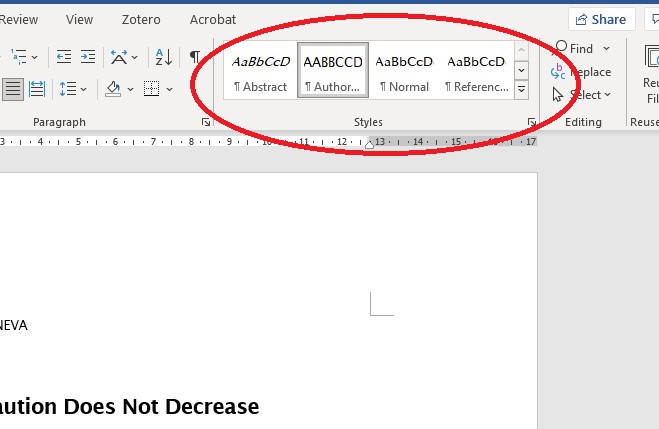
Figure 1: the Styles pane in Microsoft Word.
Styles have two functions:
- they dictate the design and layout of the text, and
- they apply semantic tags that structure the document.
The second function is the most important one for accessibility purposes.
If you have already chosen the font and paragraph layout for your headings you haven’t applied the styles, you can match the style to your design by following the steps described in Updating styles to match formatted text, below.
Applying styles to text
To apply styles to your text, select the relevant text and then click the appropriate style in the Styles pane. Alternatively, you can click on a style and then start typing: the text you type will use that style.
In more recent versions of Word, a button to access styles may appear automatically alongside other formatting options above highlighted text.
See also: Apply styles from the Microsoft Word Help & Training site.
Heading structure
Your title and heading styles must be applied in a hierarchical and logical way. The title of the article must use the Title style; first-level headings must use the Heading 1 style; second-level headings must use the Heading 2 style, etc. You must not skip heading levels for the sake of design.
Updating styles to match formatted text
If you have already formatted your text before applying the styles, you can update the appearance of the title and heading styles to match your formatting.
To update styles based on your document formatting:
- Select the text of your title or a heading (number 1 in Figure 2)
- Right-click the appropriate style in the Styles pane (number 2 in Figure 2)
- Click "Update [style] to Match Selection" (number 3 in Figure 2)
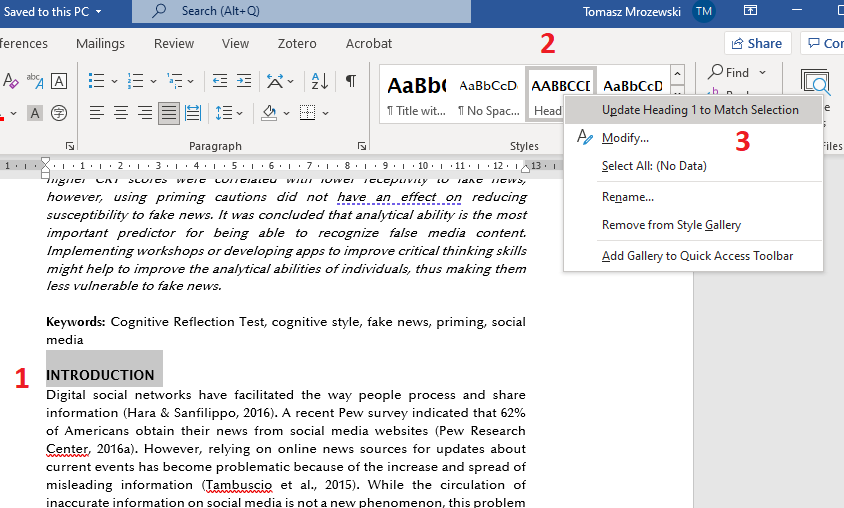
Figure 2: when you right-click a style in the Style pane, you have the option to update the style to match selected text.
Once you have updated your styles, you can then select all of the title and heading text in your document and apply the styles where required (see Applying styles to text, above).
See also: Customize or create new styles from the Microsoft Office Support site.
Creating article templates in Word
Info
Last updated: August 20, 2025
Although doing article design and layout in Microsoft Word may not seem like a professional approach, there are significant advantages to using it:
- Design features: Word features Themes that configure design elements such as font family, colours, and styles so that the articles won’t look like default Word output. You can also customize and create new Themes for your journal. Learn more about Styles and Themes and about customizing Themes in Word.
- Templates: You can create article templates in Word that you can apply to your submissions and that you can share with your fellow editors. Templates include Theme and Style information, and allow you to lay out standard elements such as journal information, article metadata, and copyright/licensing info. Learn more about working with templates in Word.
- Accessibility: Word includes many features to help you make documents accessible. Tools include title, sub-title, and heading styles, easily editable alt-text for images figures, and an Accessibility Checker. You can preserve many of these accessibility features in your galley PDF by using the option to save a file as a PDF (not printing as PDF). Learn more about creating accessible documents in Word more generally, and see also PKP’s guide on creating accessible journal content.
- Sustainability: Word is widely used and most editors already have some experience with it. The learning curve for features such as Styles, Designs, and Templates will be move quicker than for more specialized software. Because it is so widely used, you can easily search the web for help and ideas. In addition, many universities provide students and faculty with free or discounted access to the Word. Other software such as InDesign is difficult to learn, requires significant work to make its outputs accessible, and may be prohibitively expensive.